Related Links
Integrate Iperius Backup with IDrive® e2
Use Iperius to backup your data to IDrive® e2 hot cloud storage. Iperius Backup, allows you to create automated backups of files and folders stored on various devices and services such as external USB hard drives, RDX drives, Cloud Storage, NAS, Amazon S3, Google Drive, and FTP servers. Learn more about Iperius Backup.
Prerequisites:
Before uploading files using Iperius Backup, you require:
- An active IDrive® e2 account. Sign up here if you do not have one.
- A bucket in IDrive® e2. See how to create a bucket.
- Valid Access Key ID and Secret Access Key. Learn how to create an access key.
- A valid Iperius Backup account. Sign up for one here.
Set up IDrive® e2 Iperius Backup
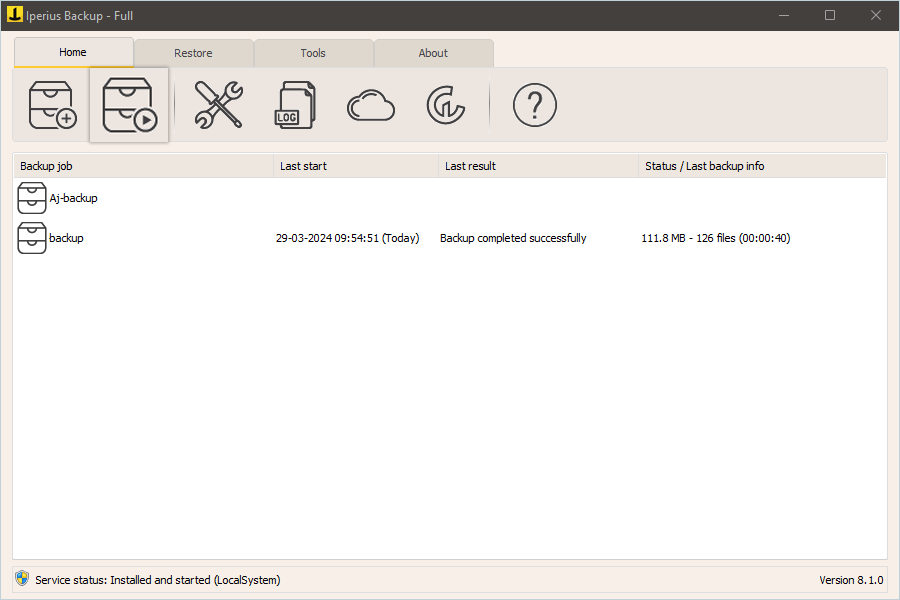
- Go to Iperius Console and click
 .
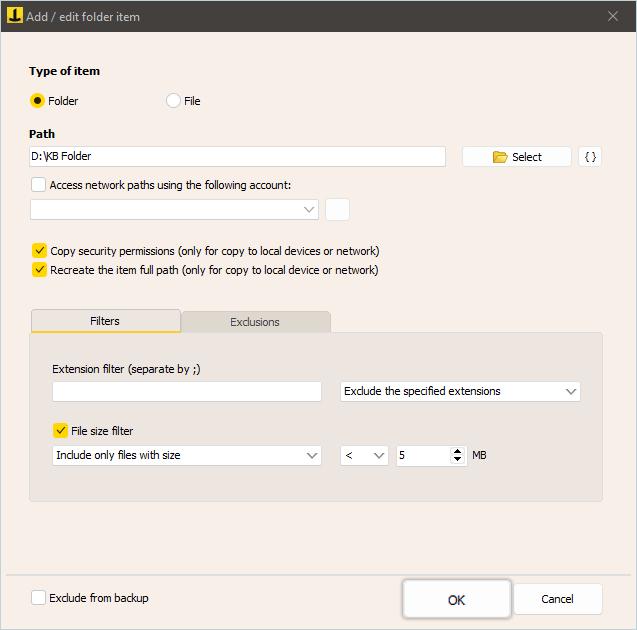
. - Select File/Folder or others as items you want to backup.
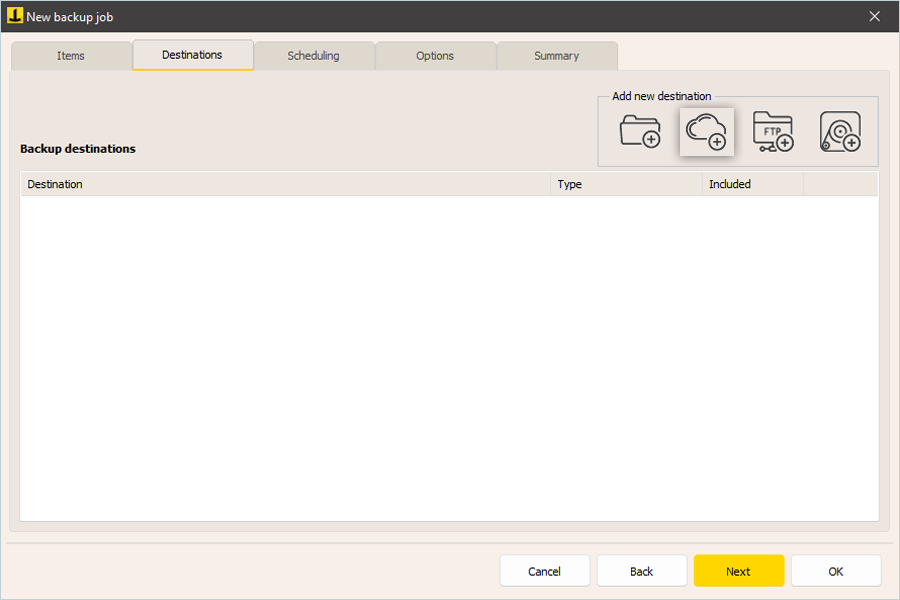
- In the Destination tab, click Add destination on Cloud.
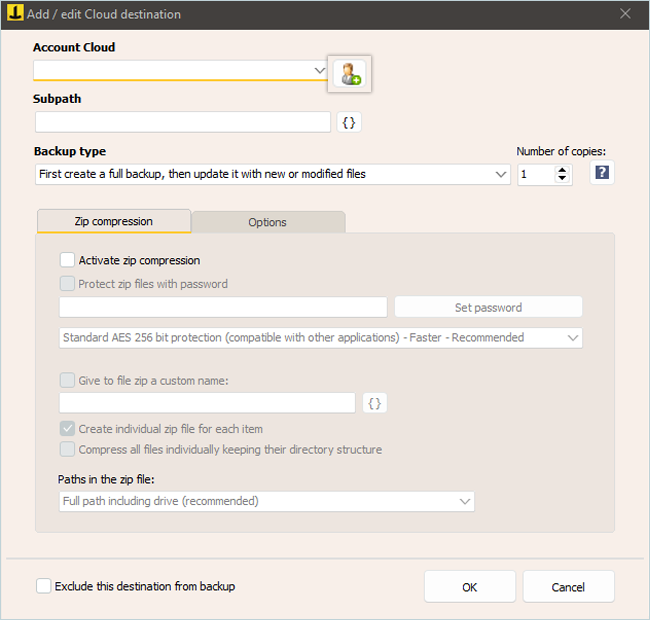
- Click
 to add a cloud account.
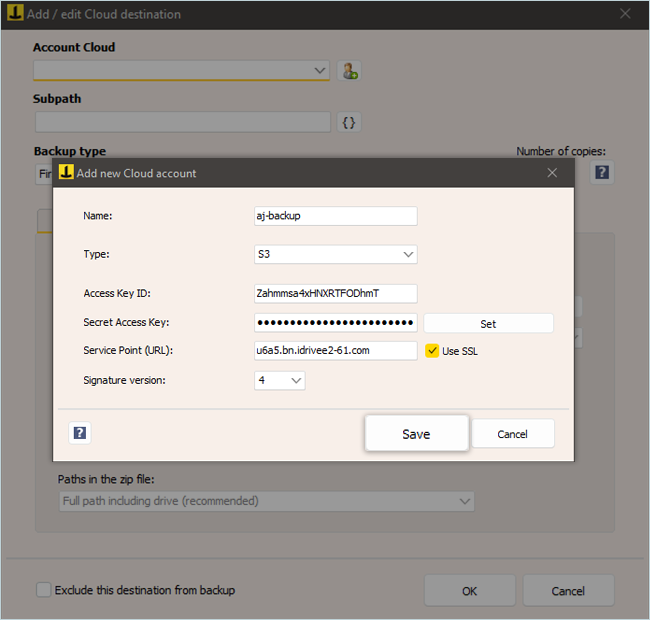
- Enter a name for the backup.
- Select S3 as the type.
- Enter IDrive® e2 Access Key ID as Access Key.
- Enter IDrive® e2 Access Secret Key as the Secret Key.
- In the Service Point field, enter the endpoint address for your IDrive® e2 bucket and select Use SSL.
- Select the Signature version. (4)
- Click Save.
- Click
- Select Added Cloud account.
- Enter a name for the bucket or accept the generated name.
- Select the backup type that suits your backup requirements.
- Select the number of backup copies you want to keep.
- Review the Zip Compression and Options tab.
- Click OK.
- Select the added backup job, click NEXT, schedule a time to run the backup, and add an email for job notifications.
- Add the Job Name and Description in the summary and click OK.
- Select the added job and click
 or right-click on the particular job and click Run Backup.
Note: Data restoration is handled by your specific backup solution provider and is affected by multiple variables that are unique to your environment. For application-related enquiries/support, it is strongly recommended you seek guidance from the technical team of your backup solution provider.