IDrive currently supports backup and restore of the following Oracle versions:
Oracle 18c
Oracle 19c
Oracle 21c
Oracle 23c (23ai)
NOTE: Only single-instance configurations are supported.
Are there any prerequisites or configuration requirements for performing Oracle database backup and restore using IDrive?
Yes. To ensure successful backup and restore operations using the IDrive application, the following prerequisites and configurations must be met:
Database Requirements
- Only single-instance Oracle database configurations are supported.
- Backup and restore operations are supported for only Container Databases (CBDs).
- Pluggable databases (PDBs) are not backed up or restored individually; they are backed up as a part of Container Database (CDB).
- The database must be in OPEN state.
- The database must be running in ARCHIVELOG mode.
- Oracle Real Application Clusters (RAC) are not supported.
Connection Requirements
- The user performing backup/restore operations must have SYSDBA privileges.
- The host string must be entered in the EZCONNECT format:
<host_name>:<port_name>/<service_name>
For e.g. 192.165.1.234:1521/ORCL
NOTE:
- Starting with Oracle Database 12c (12.1.0.2), the non-CDB architecture (non-multitenant architecture) is deprecated.
- Configuration and feature availability may vary based on the Oracle database version and Oracle’s official documentation.
- You may consult your Oracle Database Administrator for details on the configuration parameters and proper environment setup.
How do I backup Oracle databases?
To backup your Oracle server,
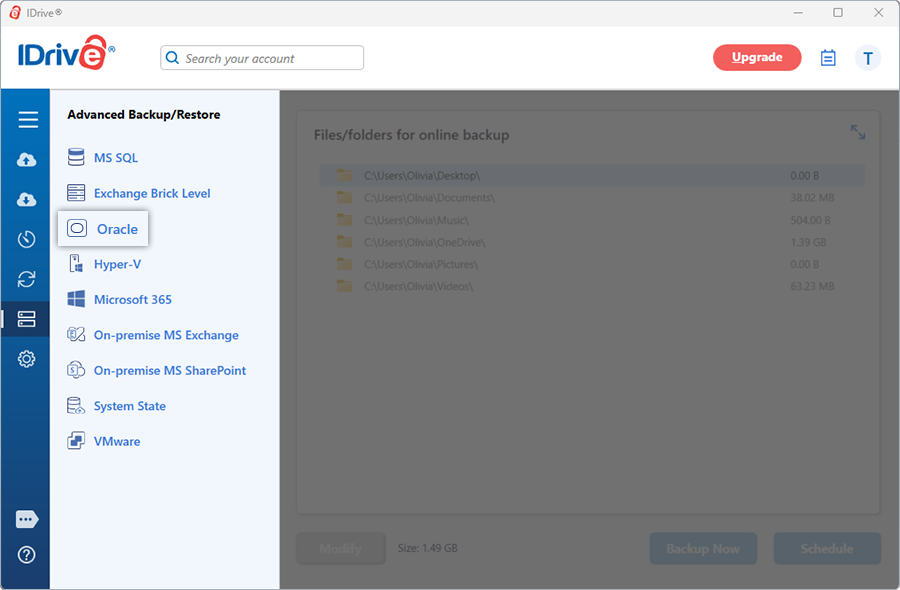
Sign in to the IDrive application and click 'Server Backup'. A slider menu will appear. Select 'Oracle'.
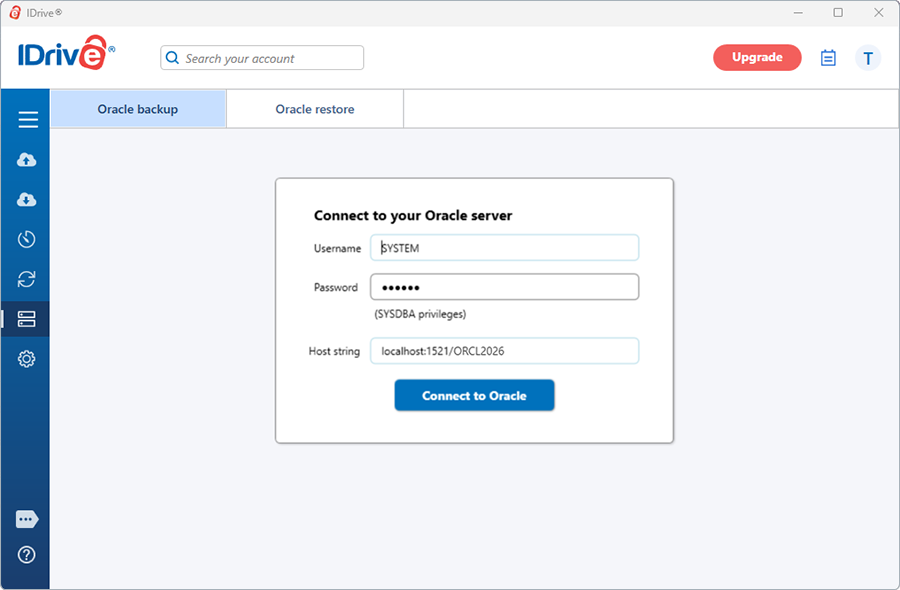
The Oracle Connection screen appears. By default, the Oracle Backup tab is selected.
Provide the Oracle Instance authentication information when prompted. Enter the Host String in the EZCONNECT format:
<host name>:<port name>/<service name>
For e.g. 192.168.1.245:1521/ORCL
Click 'Connect to Oracle'.
Note: Ensure that the user has SYSDBA privileges.
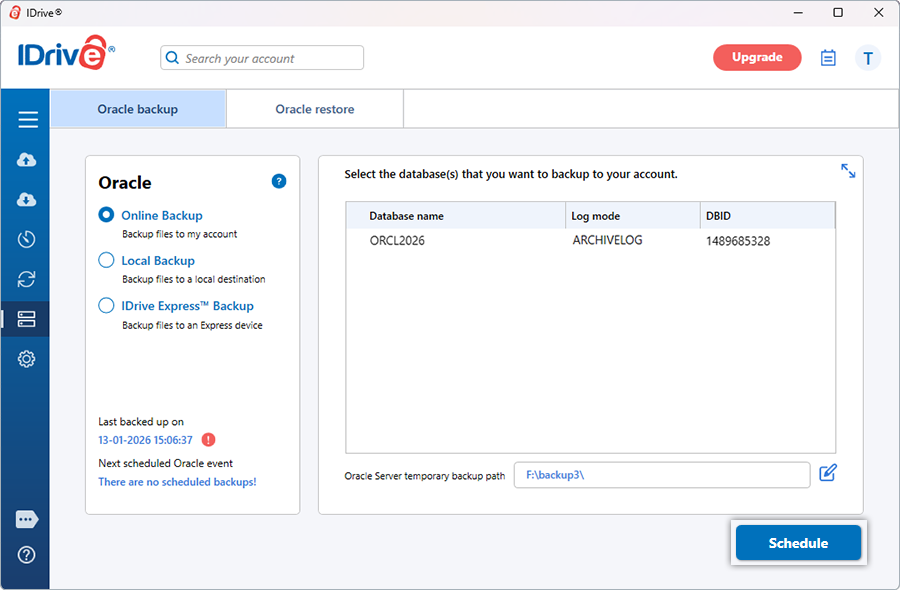
Select 'Online Backup', or 'Local Backup', or 'IDrive Express™ Backup'.
Note: On selecting ‘Online Backup’, the data will be stored on the IDrive cloud whereas on selecting 'Local Backup' or 'IDrive Express™ Backup' the data will be stored in the local drive.
Select the Container Database (CDB) and specify a temporary path for the local backup.
Note:
Ensure that the selected temporary directory path on the local computer has sufficient disk space to hold the Oracle server backup resources. Also, select the temporary location on the computer where the Oracle Instance is running.
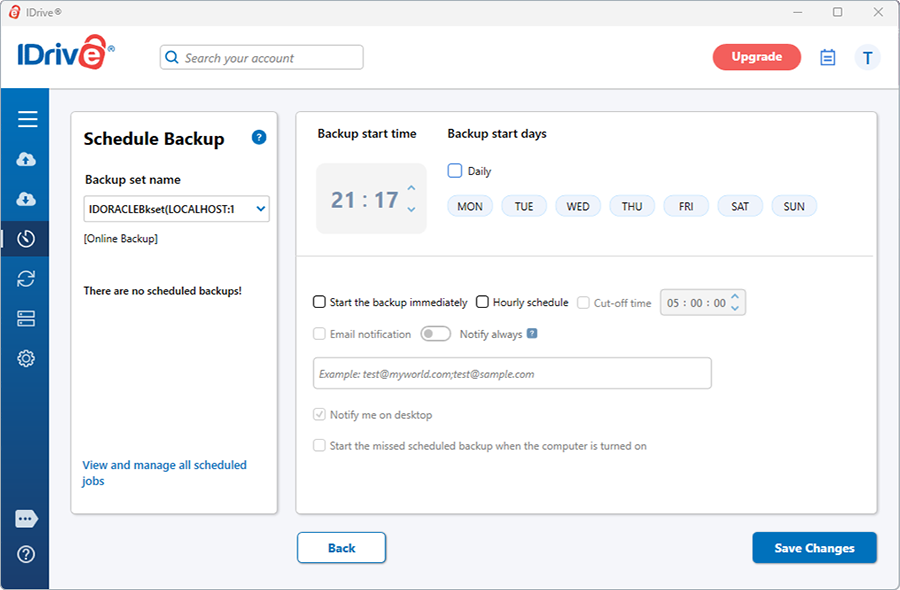
Click 'Schedule'. The ‘Scheduler’ is displayed where you can schedule the backup for any future day and time or perform an immediate backup of the selected Container Database.
NOTE: For an easy identification of the Oracle backup set, the name of the backup set will begin with ‘IDORACLEBkset’ followed by the Database Host String and backup type.
For e.g. if the host string is 192.168.1.235:1521, then the name of the backup job will be IDORACLEBkset(192.168.1.235:1521_DB)[Local].
You may consult your Oracle Database Administrator for details on the configuration parameters.
Does IDrive perform incremental backup of Oracle databases?
Yes, IDrive performs incremental backup of Oracle databases.
How do I convert the database to the ARCHIVELOG Mode?
It is crucial to convert the Oracle database to ARCHIVELOG mode before backup for ensuring data integrity and seamless database operations. To enable ARCHIVELOG mode using Oracle Recovery Manager (RMAN):
Can I backup the databases from multiple instances of the Oracle server with IDrive?
Yes, IDrive supports backing up multiple Oracle instances by configuring each instance individually with its own connection details (host, port and service name). Since only single-instance database configurations are supported, IDrive connects to one instance at a time and the associated Container Database (CDB) is backed up as a whole.
I am receiving an error message for insufficient privileges while performing the Oracle server backup. Why?
This error occurs if you have logged into the Oracle server as a user that does not have sufficient privileges to perform backup and restore operations. To grant SYSDBA privileges, use the following command: SQL> GRANT SYDBA TO <user>
Can I perform Oracle server backup in the 'Mirror Path' mode?
No. Oracle database backups do not support Mirror Path mode. All Oracle database backups are stored using a relative, application-managed directory structure, as required by RMAN-based backup operations.
Can I add/modify the files present in the Oracle backup folder 'IDORACLEBackup'?
No, it is not recommended to add/delete/modify any files in the IDORACLEBackup folder. This folder contains Oracle backup data and metadata. Any changes to the contents of this folder can affect the integrity of the backup and potentially impact the Oracle server restore operations.
Can I choose a shared or mapped drive as the destination for the Oracle server backup?
No. A shared or mapped drive cannot be selected as the destination for your Oracle server backup.
Can I remove the Oracle backup folder 'IDORACLEBackup' from my local computer upon completion of Oracle server backup to my IDrive account?
You may remove the IDORACLEBackup folder from your local system after a successful backup to your IDrive account. However, deleting this folder prevents local incremental backups for the Oracle database. Any subsequent backups will be performed as full backups.
How do I restore my Oracle database back to the Oracle server?
To restore your Oracle database,
Sign in to the IDrive desktop application and click 'Restore'.
Select 'Online Restore', or 'Local Restore', or 'IDrive Express™ Restore'.
Locate and select the IDORACLEBackup' folder in your IDrive account or local drive. Note: If ‘Local Restore’ is selected, you can choose the required version from the 'Version' list.
Click the 'Restore Now' button, to restore the 'IDORACLEBackup' folder to the local computer. Note: The 'IDORACLEBackup' folder selected for restore should be in the same path as it was while performing the backup operation.
Once the folder has been successfully restored, click 'Server Backup'. A slider menu will appear.
Click 'Oracle'. The Oracle connection screen appears.
Click 'Oracle restore'.
Provide the relevant Oracle server authentication information when prompted. Click 'Login to Oracle Server'.
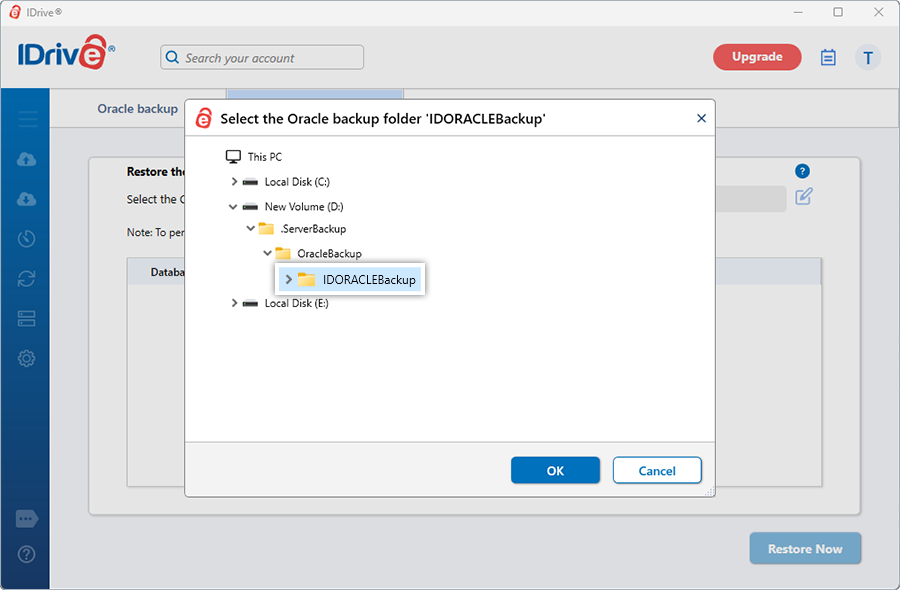
Browse and choose the 'IDORACLEBackup' folder (restored earlier from your IDrive account or local drive).
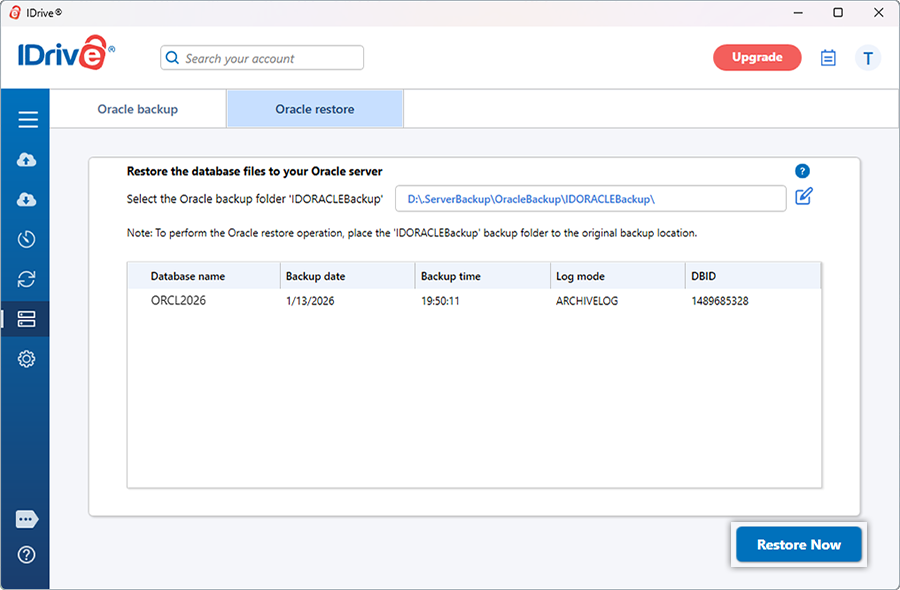
Select the database(s) you want to restore to your Oracle server.
Click 'Restore Now'.
How do I restore the Oracle database to a different server?
To restore an Oracle database to a different server, you need to operate the RMAN tool manually. To get details of the DB such as DBID, original backup filename, TAGNAME etc, you need to refer to the ini file found in the IDORACLEBackup folder.